Dock managementfor goods in and dispatch

Time slots put your doors in order: inbound and outbound deliveries follow the plan, not whoever arrives first.

Carriers and collectors book a free window themselves. You see which door is taken, which blocked times apply and where an inbound or outbound delivery stands. slotbase runs in the browser, needs no installation and is ready in a few minutes. Time-window management stays limited to what the yard and the dock actually need.

Learn more

All features and use cases of slotbase

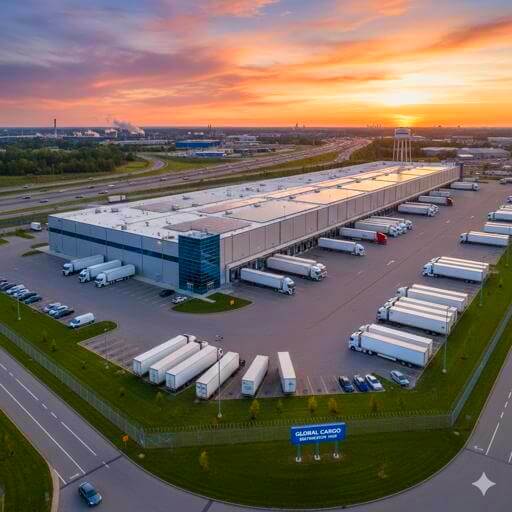
Aerial view of a logistics centre with many loading docks and trucks in the yard outside goods in.

Where the dock loses its rhythm

Goods in and dispatch often share the same doors, the same yard and the same people. Without time slots, arrival order decides the day, not the sequence you actually need.

Vehicles arrive when the route allows

If no window is fixed, several trucks collect at the same door. The team unloads one vehicle while the others wait. Or a dock stays empty because the next delivery was never agreed. A booked time slot gives every inbound and every outbound delivery a place in the day.

Phone calls are not dock control

Changes travel by phone, chat and spreadsheets. Planning and the door then work from different versions. A cancellation reaches the team too late, an extra collection is on no list. One occupancy view shows free and taken windows to everyone who books or only reads.

Goods in and dispatch block each other

Morning is for inbound goods, afternoon for outbound. If both streams use the same docks without a rule, dispatch waits behind an unloading that runs long. Separate time slots and targeted blocks keep the two directions apart, without a second system.

The status of a delivery stays unclear

Is the truck on site, still being unloaded, or already gone? Without a status and without check-in/check-out, the door answers from memory. Status tracking makes the progress of the booking visible to planning and to the door team.

Features for dock control

You use the tools slotbase already provides for inbound and outbound deliveries, applied here to doors, the yard and your partners.

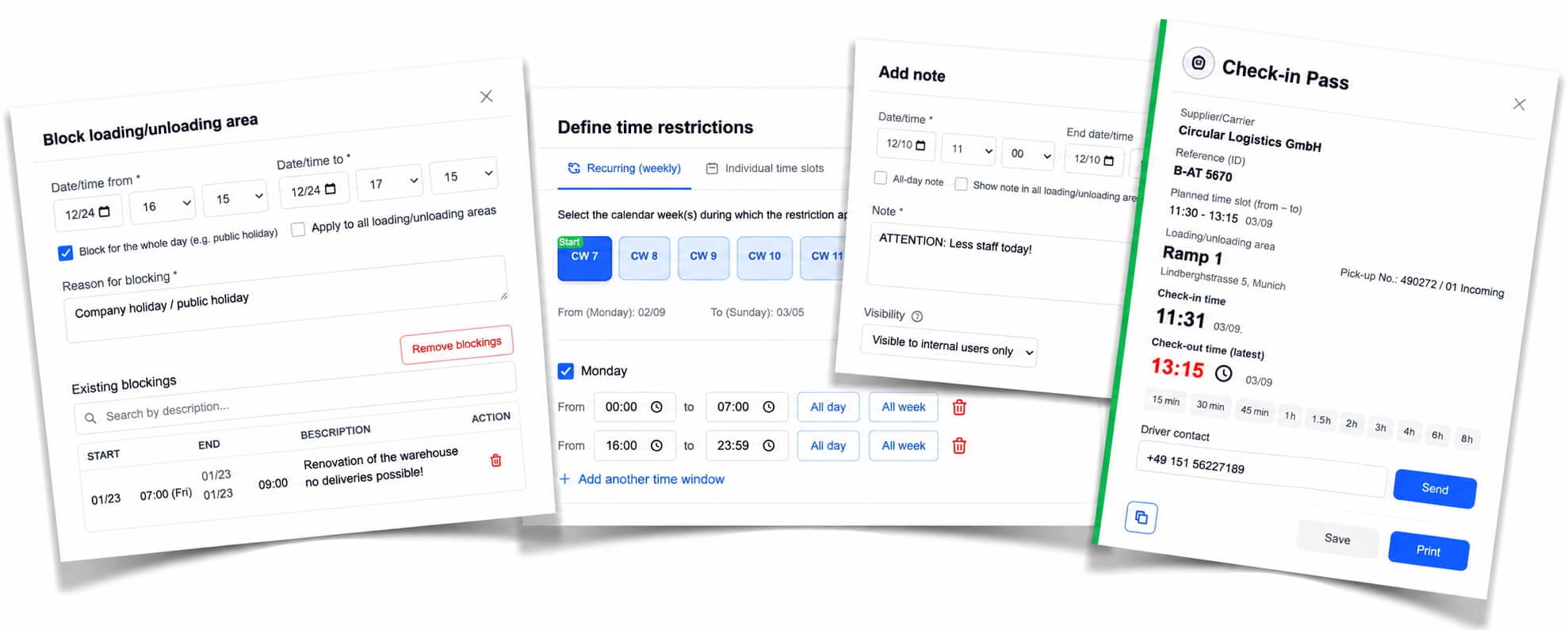
Screen with blocked times, locks, notes and check-in for running a dock.

Blocked times and locks

Breaks, shift changes, maintenance or a plant holiday do not belong in the bookable day. Templates close recurring times. A single lock takes one door out of booking for a period, while the other docks stay open. External partners can book only in the times you release.
Check-in and check-out

Check-in happens at the door, check-out when the vehicle leaves. You see which truck is still on site without a second list beside the time slot. Time on the yard stays traceable, and the next booking at the same dock starts on a free door.

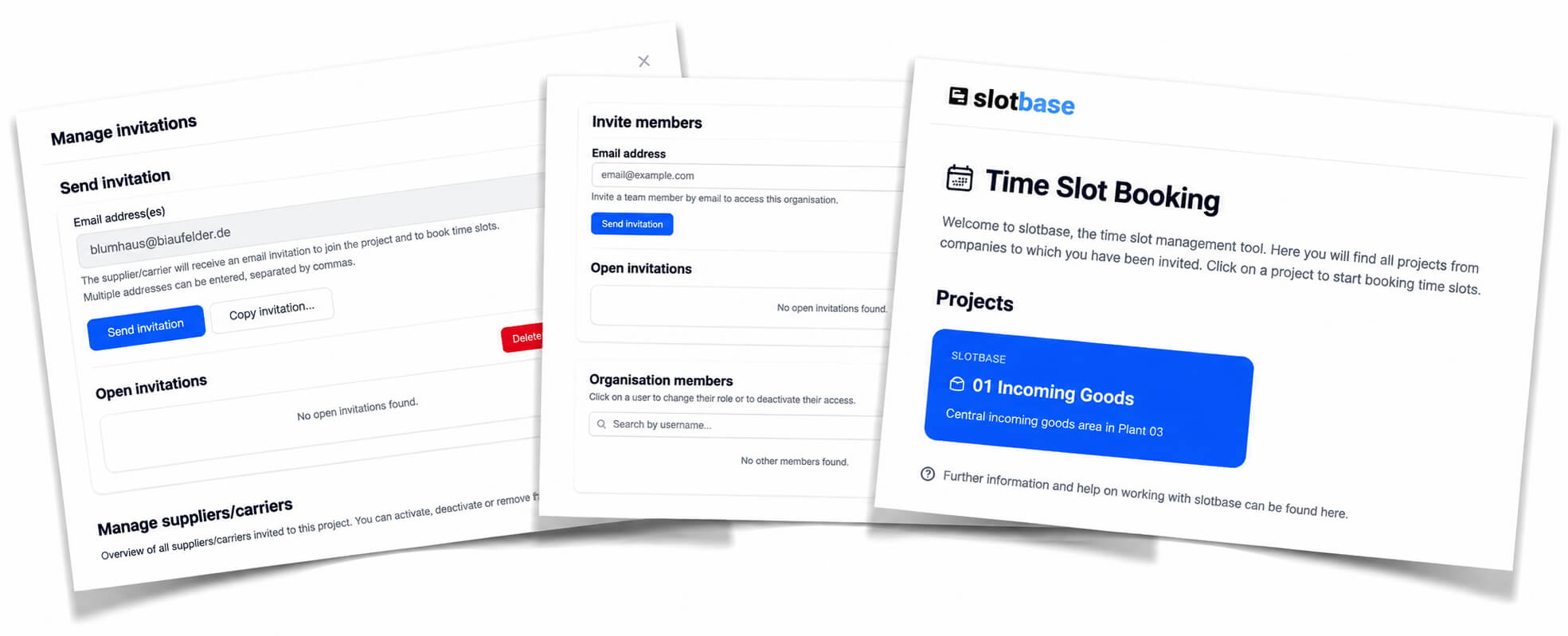
Invitation screen used to connect suppliers and collectors to a dock by email.

Invite suppliers and collectors

An email with a link is enough. The carrier or collector books in the browser, with no installation and no training. Each external partner sees their own bookings, the free time slots, plus your blocked times and notes. Names of other companies stay hidden unless you release them. You can withdraw access again. Colleagues can be invited to edit or only to read.

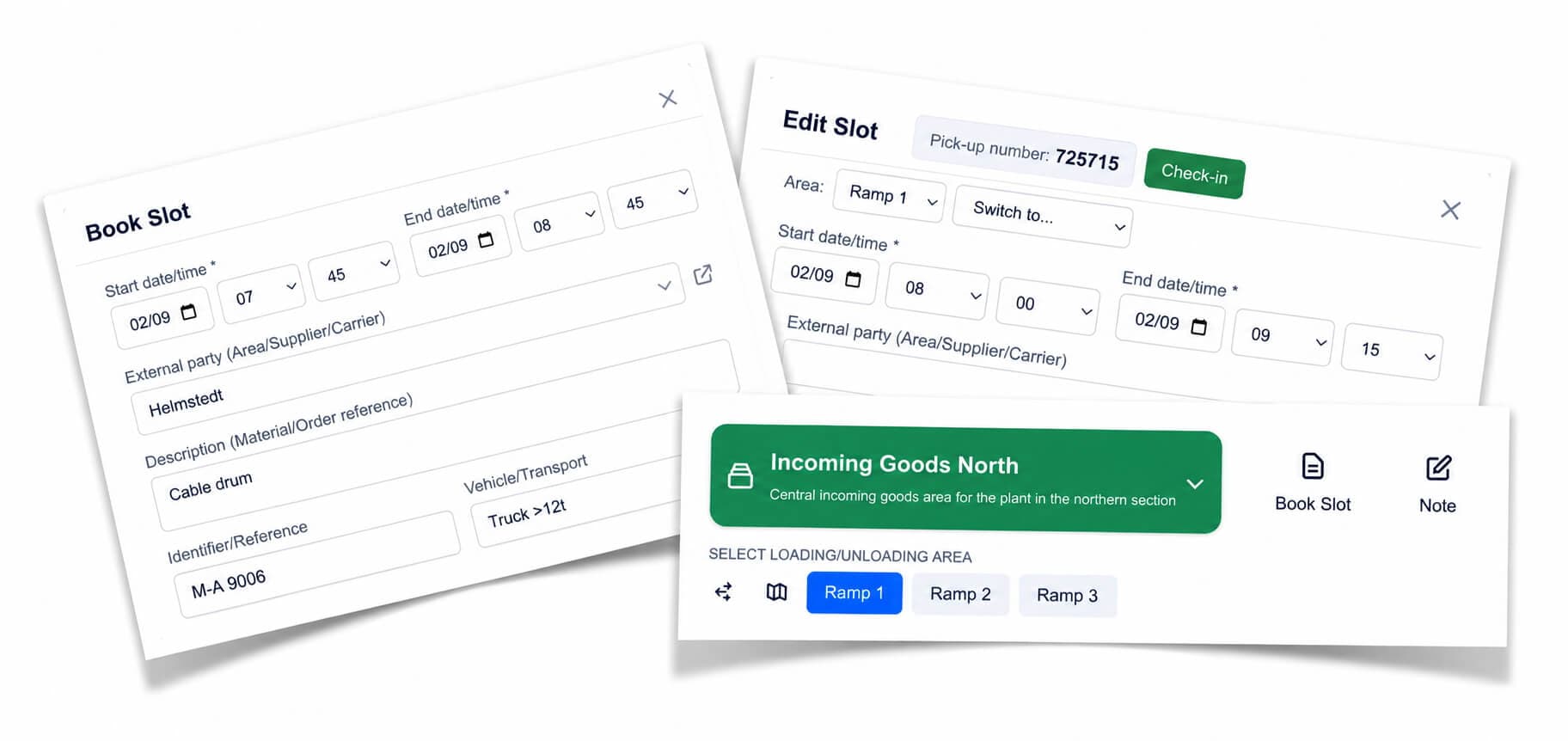
Booking screen for a dock time slot with few fields and a visible status.

Status tracking for inbound and outbound

Every booking has a visible state: planned, in progress or done. Planning and the door do not have to call each other to share the same picture. The booking itself stays short. In the simplest case a time slot is created in a few clicks, without a large number of fields.

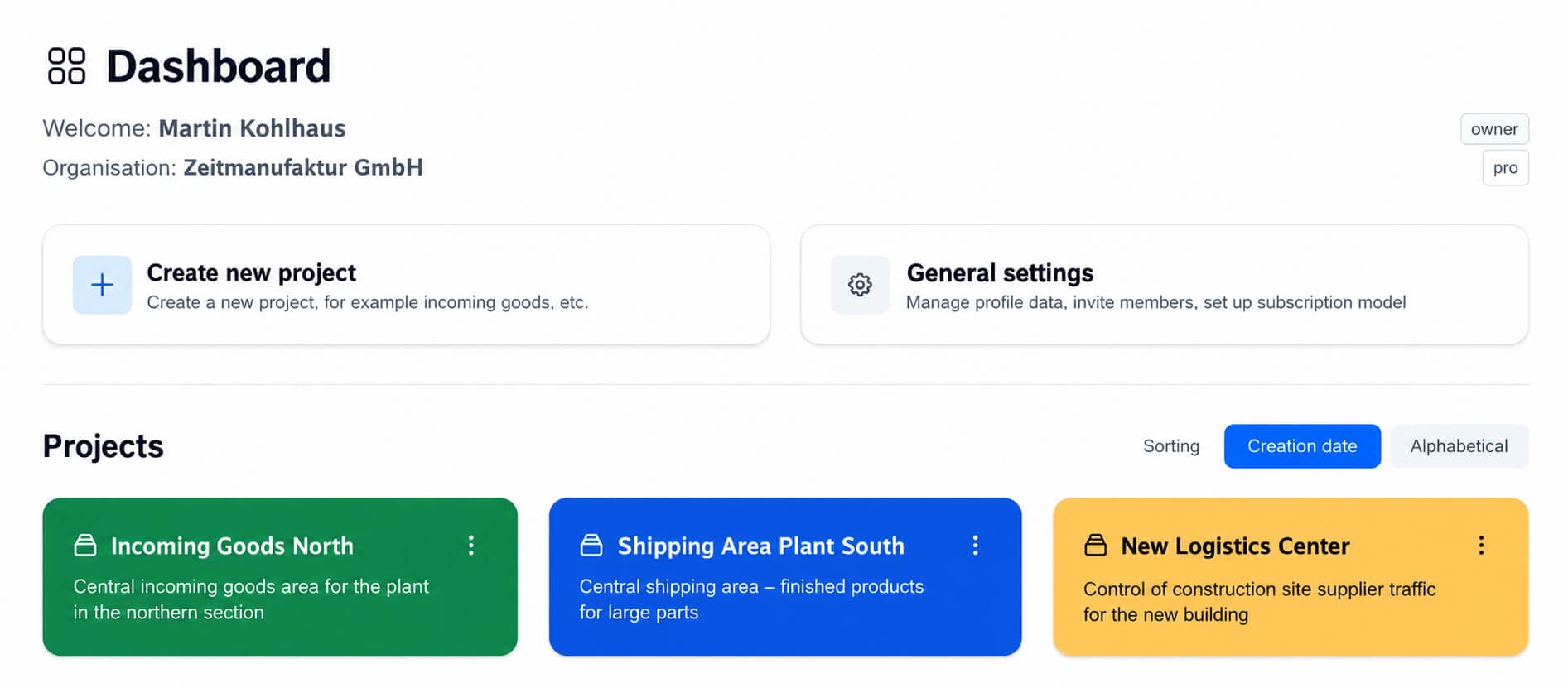
Dashboard with separate projects for goods in, dispatch and another logistics job.

Occupancy view of the docks

You set up goods in and dispatch as separate areas. Projects sit side by side on the dashboard. The occupancy view then shows which door is free and where inbound and outbound deliveries pile up. Invited partners only see the projects you have allowed them to use.

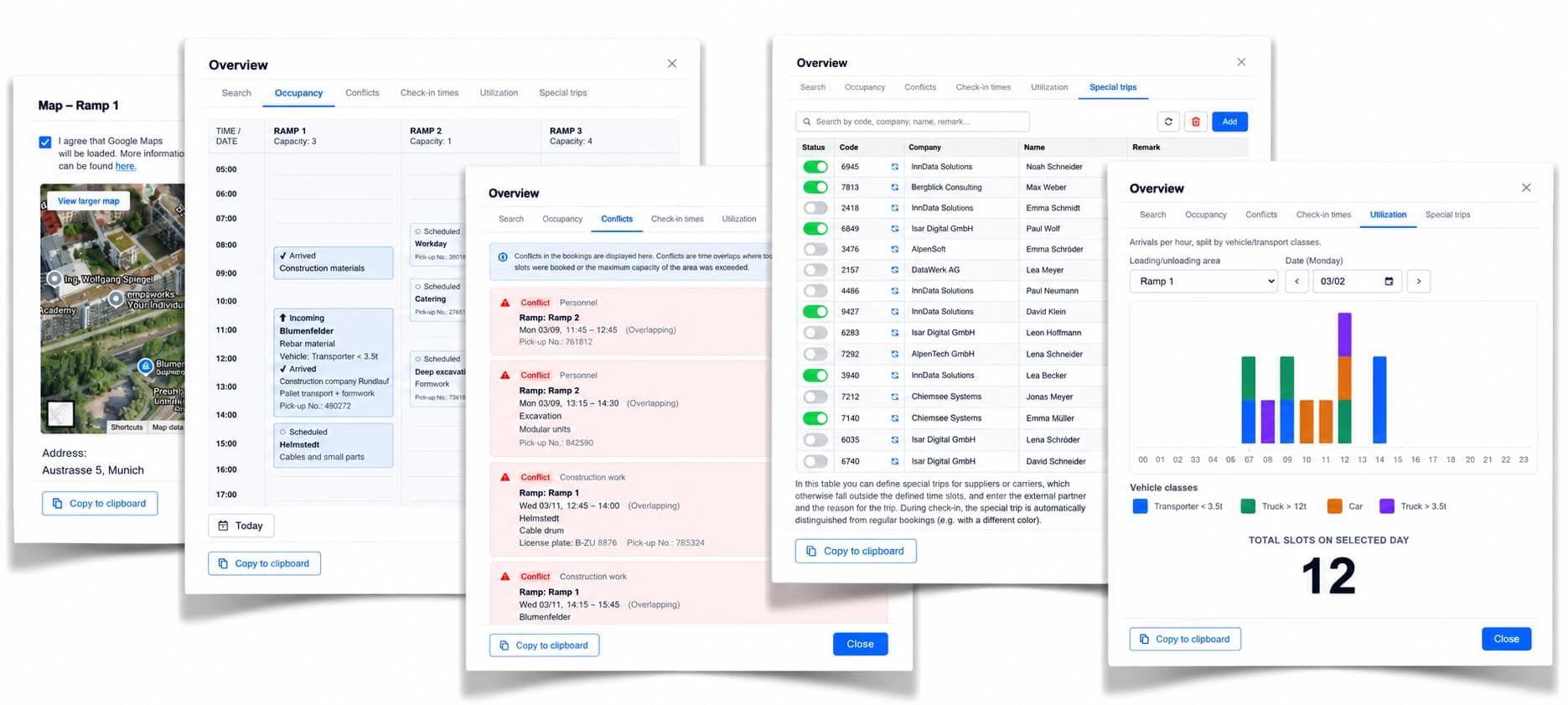
Analysis view with occupancy of several docks, a map, conflict markers and utilisation.

Conflict analysis

If two bookings overlap on the same dock, conflict analysis shows the clash before the yard fills up. You lock that door for the critical hour or assign the window again. The other docks stay unaffected.

How it works

Three steps, then your partners book the time slots at the dock themselves.

1

Set up docks and time rules

Sign up as the client. Create goods in and dispatch as areas and set the hours in which an inbound delivery may be planned and booked.

2

Invite carriers and collectors

Send the link to the partners who deliver or collect at your doors. There is no software to roll out.

3

Book time slots and run the doors

Partners choose a free window. You see occupancy, set a lock when you need one, and follow the delivery with check-in and check-out.

A day at goods in and dispatch

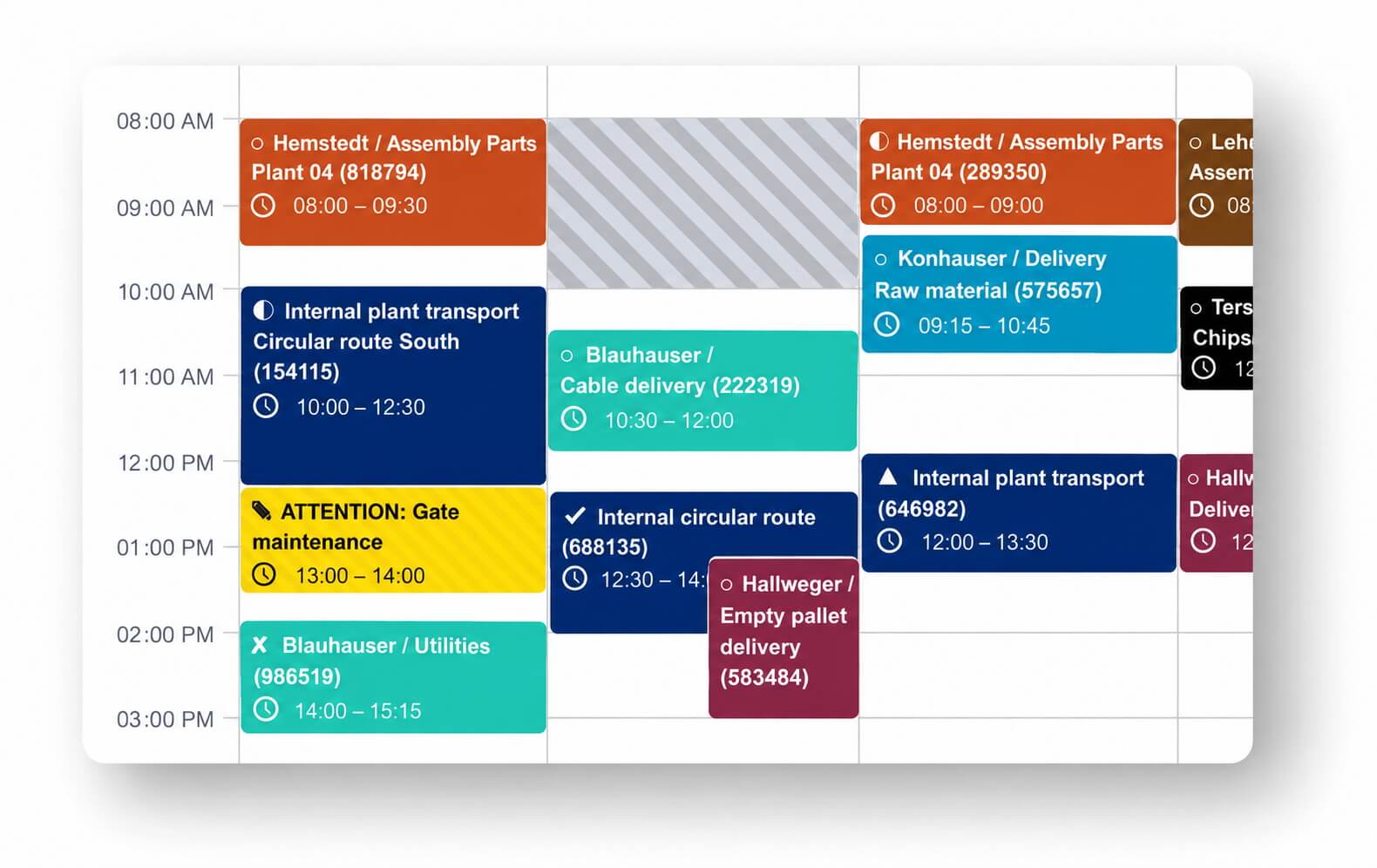
Goods-in occupancy plan with coloured time slots, a marked blocked period and status labels.
Use in goods in

A plant uses several docks for inbound goods and for dispatch. Planning opens the morning for inbound deliveries and keeps the afternoon for collections. A blocked time sits across the shift change, and nobody books then.

Registered carriers open their access and take a free morning window. Collectors see the afternoon windows that are open for dispatch. If a door is down for maintenance, planning locks that dock only. The other doors stay bookable. External partners see the lock and the free time slots. They do not see which other company is at the next door.

When a vehicle arrives, the door team checks it in. After unloading or loading comes check-out. A note on the time slot, for example the unloading point or a document to bring, replaces a separate email to the carrier. Planning reads the status in the occupancy view instead of calling around the yard.

Questions about dock management

What does dock management software do?

It plans the use of your doors with time slots. Inbound and outbound deliveries get a window, blocked times stay free of bookings, and you see the state of each delivery. slotbase is built for the yard and runs in the browser, rather than as a general calendar.

How do I plan inbound deliveries at several doors?

Create each dock as its own area. Partners book the right area in a free time slot. The occupancy view shows where there is still room. Conflict analysis shows where two bookings overlap.

Can carriers book their own time slots?

Yes. After the invitation they book in the browser. The carrier does not install anything. Billing stays with you as the client. Suppliers and collectors do not receive an invoice.

How do I handle breaks and a plant holiday?

With blocked times and locks. Templates cover recurring breaks. A single lock closes one door or every area for a period, for example across a plant holiday.

Do suppliers see the names of other companies?

No. Invited partners see which time slots are free or taken, plus your blocked times and notes. You release another company’s name only if you explicitly choose to.

Do I have to install software at the door?

No. A browser is enough, including a tablet at the gate. You can try access for free with a limited number of bookings. Prices for continued use are on the homepage.

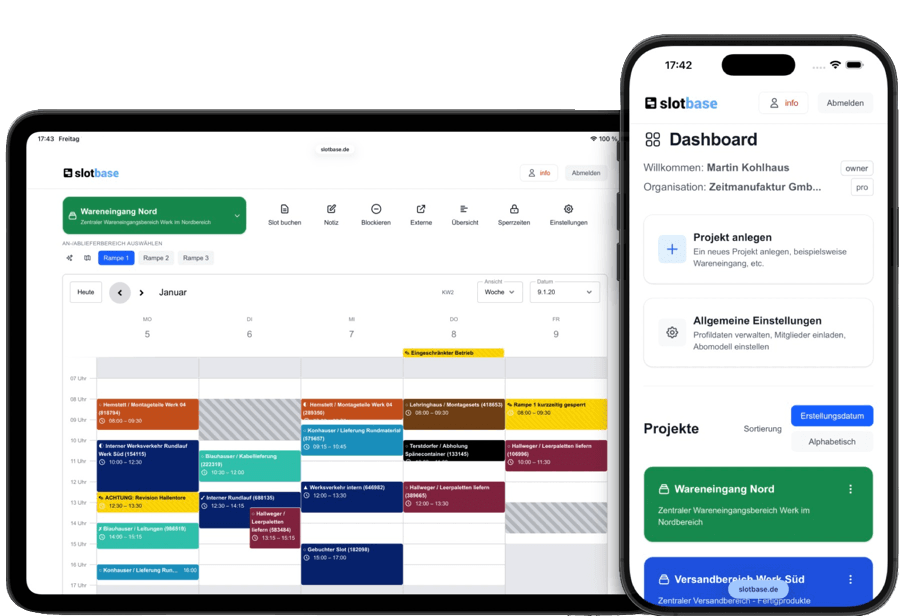
slotbase on a tablet with a week calendar of several docks and on a smartphone with the project list.

Run your docks with time slots

Set up your doors, invite a carrier and see whether the occupancy matches your day. If it does, move to a plan with a fixed fee, independent of how many bookings you make. The amounts are on the pricing section.

See pricing

Get in touch

All features and use cases of slotbase